





To manage iCloud storage on a Mac, click on the Apple menu → Click on "System Preferences" → Click on "iCloud" → Click on "Manage" → Then, click on individual applications to see how much data they use or to delete files and data.
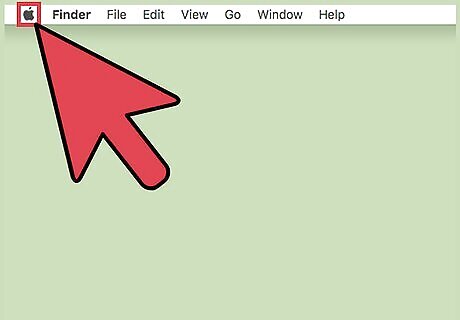
Click on the Apple menu. It's the black, apple-shaped icon in the upper-left of your screen.
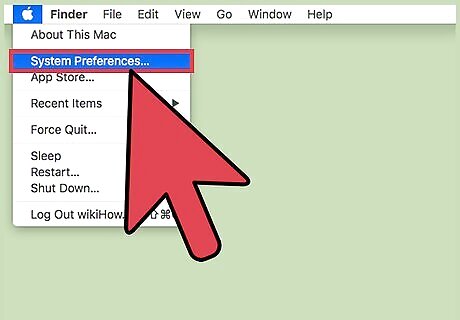
Click on System Preferences.
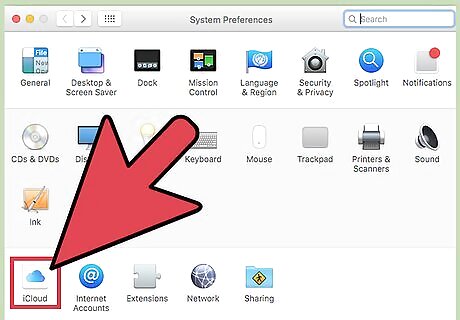
Click on iCloud. It's on the left side of the Preferences window.
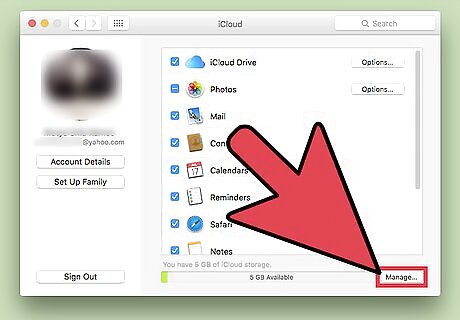
Click on Manage. It's in the lower-right corner of the dialog box. The amount of iCloud memory that you have available for storage and the total amount included in your plan will be listed at the top of the dialog box. For example, "26.5 GB of 50 GB."
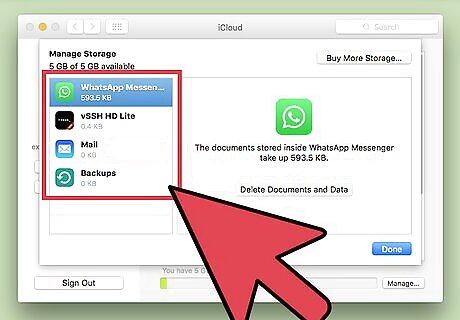
Click on applications. The applications that use iCloud are listed in the left pane of the dialog box. You can manage your iCloud memory by deleting data and files from individual apps. The option to delete data and files appears in the right pane of the dialog box as you click on individual applications.









Comments
0 comment