



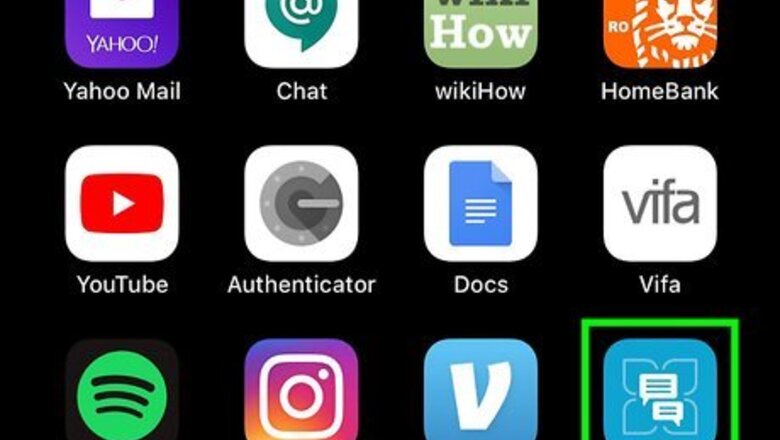

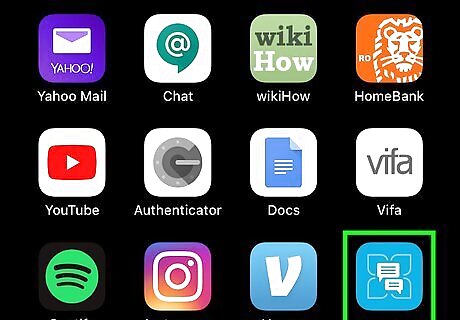
Open the HotSchedules app on your iPhone or iPad. The HotSchedules icon looks like a white, 4-leaf lotus flower icon in a blue square. You can find it on your home screen, or in an app folder.
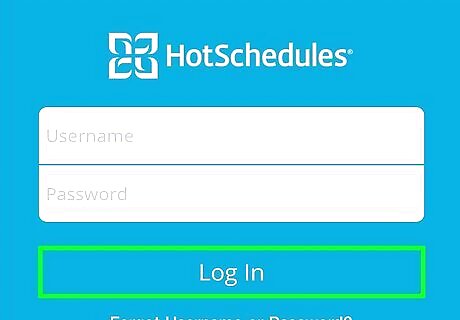
Log in to your employee account. Type your username and password, and tap the Log In button to open your schedule. If you're automatically logged in, HotSchedules will open up to the "My Schedule" page.
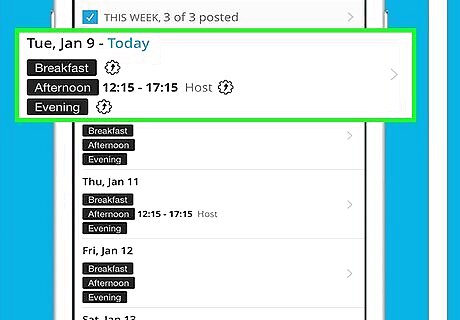
Tap the day you want to pick up. Scroll down to find the day you want to pick up a shift on, and tap on the day to select your shift. This will open a list of all the open shifts you can pick up on this day. Once you're logged in, the schedule is the first thing you see. You'll see the number of available shifts under each day on the "My Schedule" page.
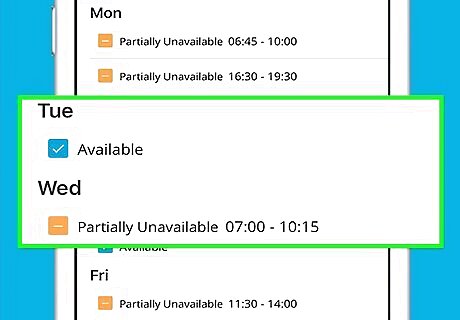
Select the open shift you want to pick up. Tap the shift you want to pick up on the pop-up menu. This will open the selected shift's details on a new page.
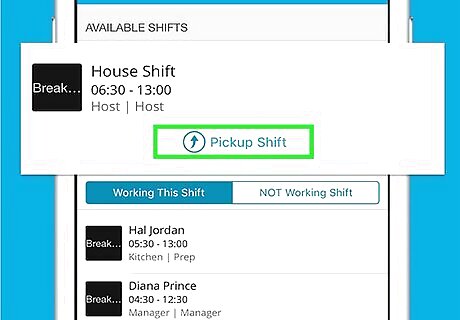
Tap the Pickup Shift button. This is a blue button at the top of the shift details page. This will instantly pick up the selected open shift. If there are multiple shifts you can pick up here, you can tap on any shift here to designate which one you want.
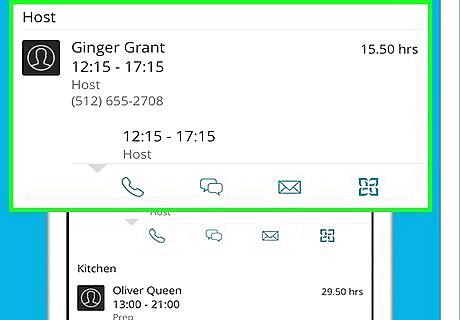
Tap OK in the confirmation pop-up (optional). If your pick-up requires a confirmation from your manager, you'll see a pop-up message when you pick up the shift. Tapping OK will close the pop-up, and send the pick-up request to your manager.









Comments
0 comment